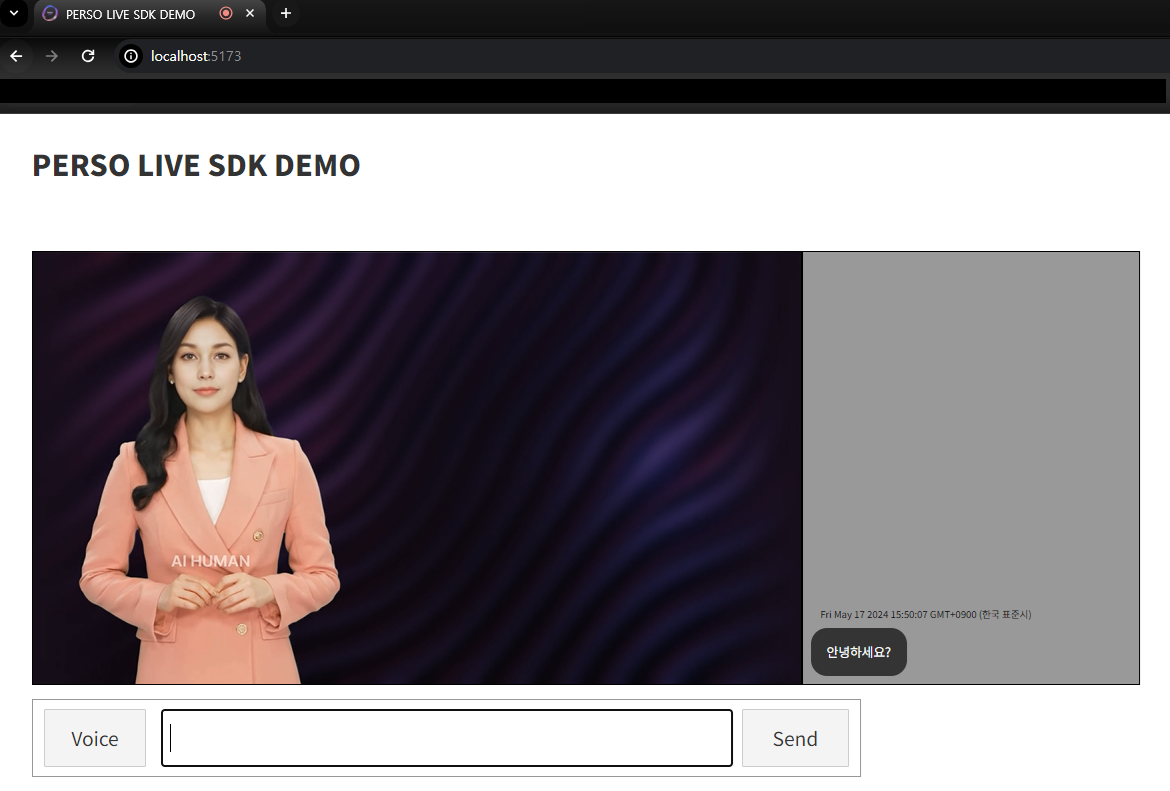
PERSO Live
PERSO Live is a real-time conversational AI Human service.
PERSO Live Admin Documentation
Introduction
PERSO Live Admin is a page where you can do administrative operations while using PERSO Live.
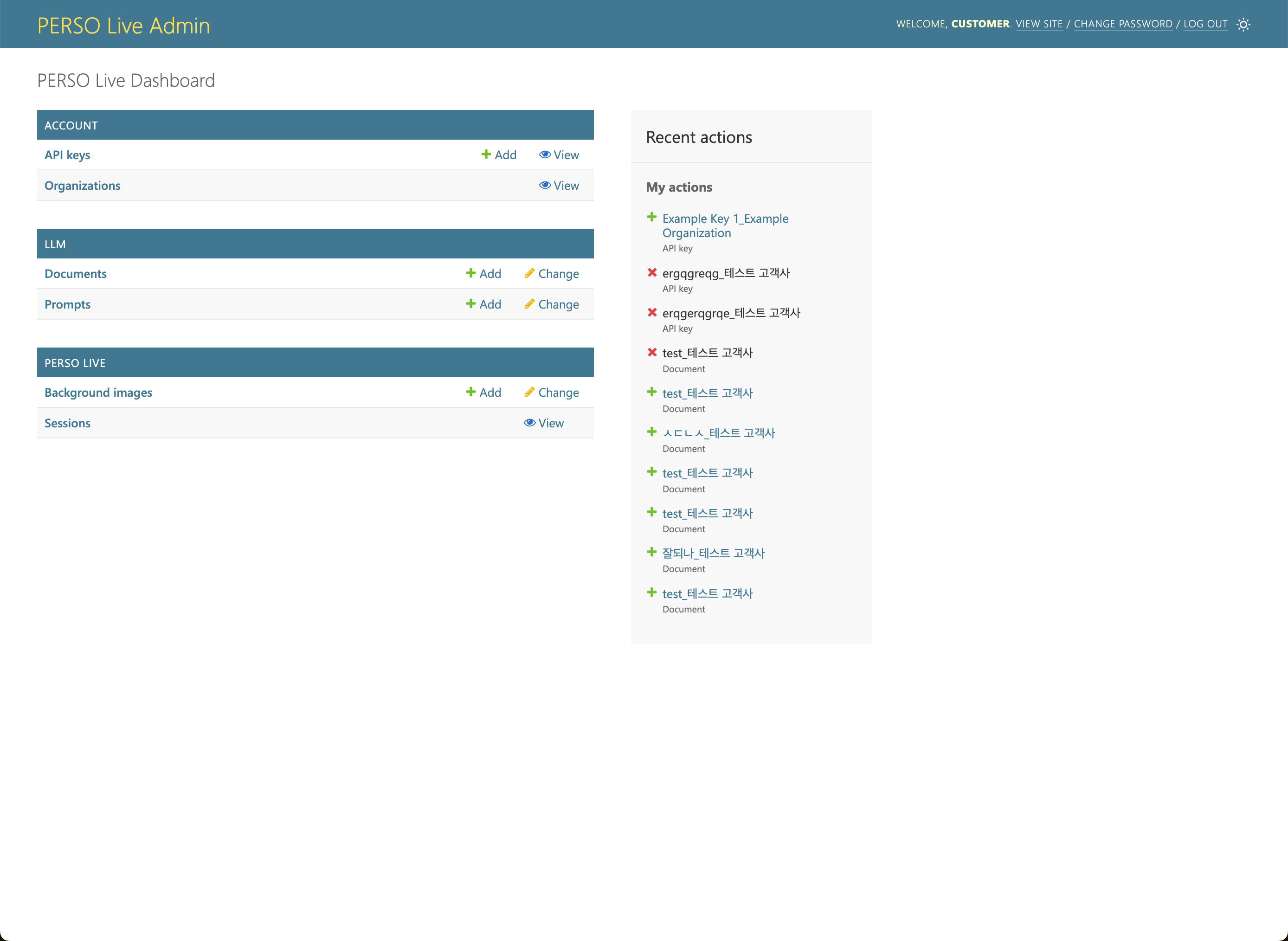
Account
Organizations
Organization is a unit in PERSO Live that defines quotas, usage statistics, resources and available features. The organization is authenticated using API keys.
Listing Organizations
You can view your organization's information in the Organizations page.
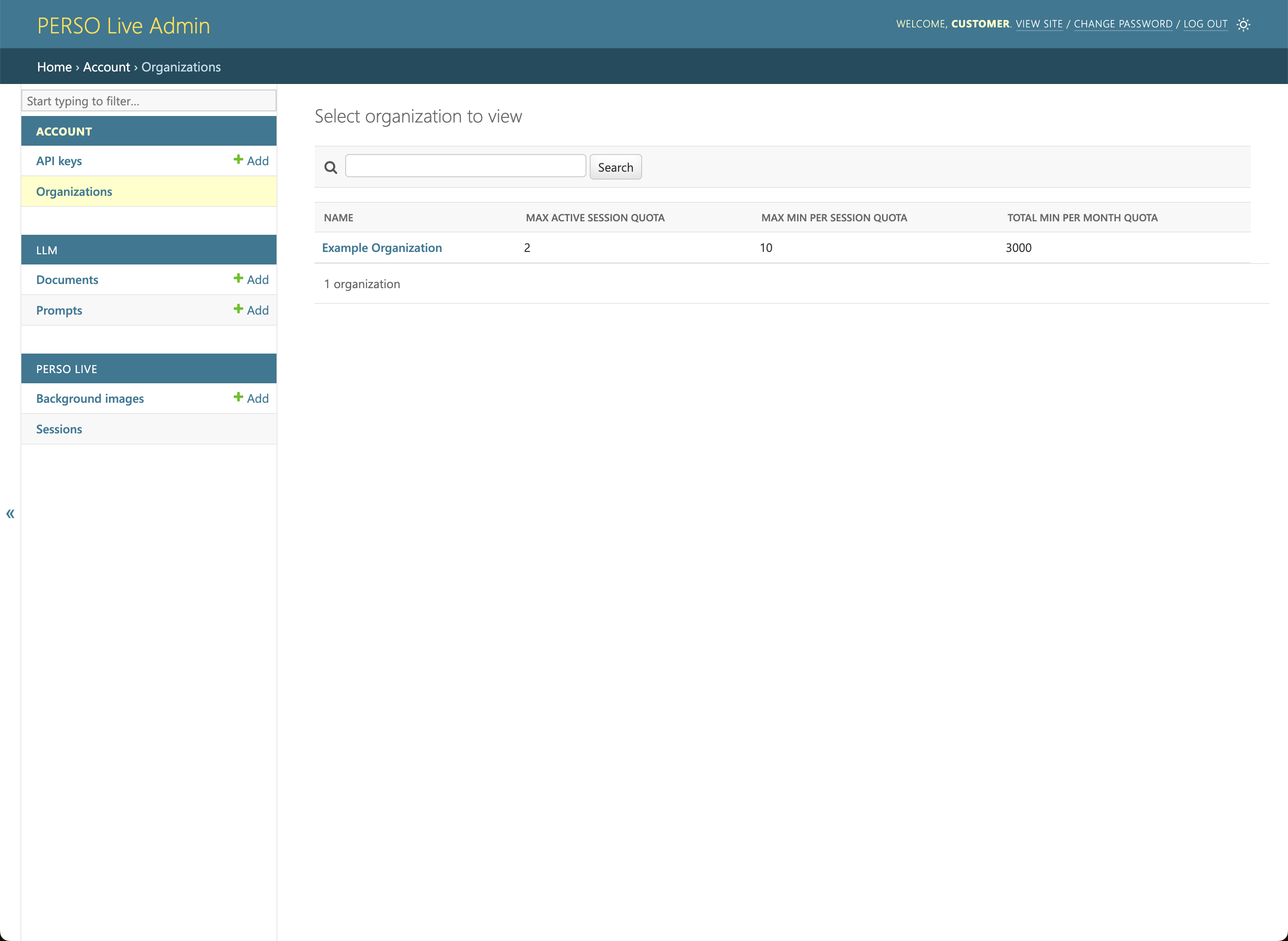
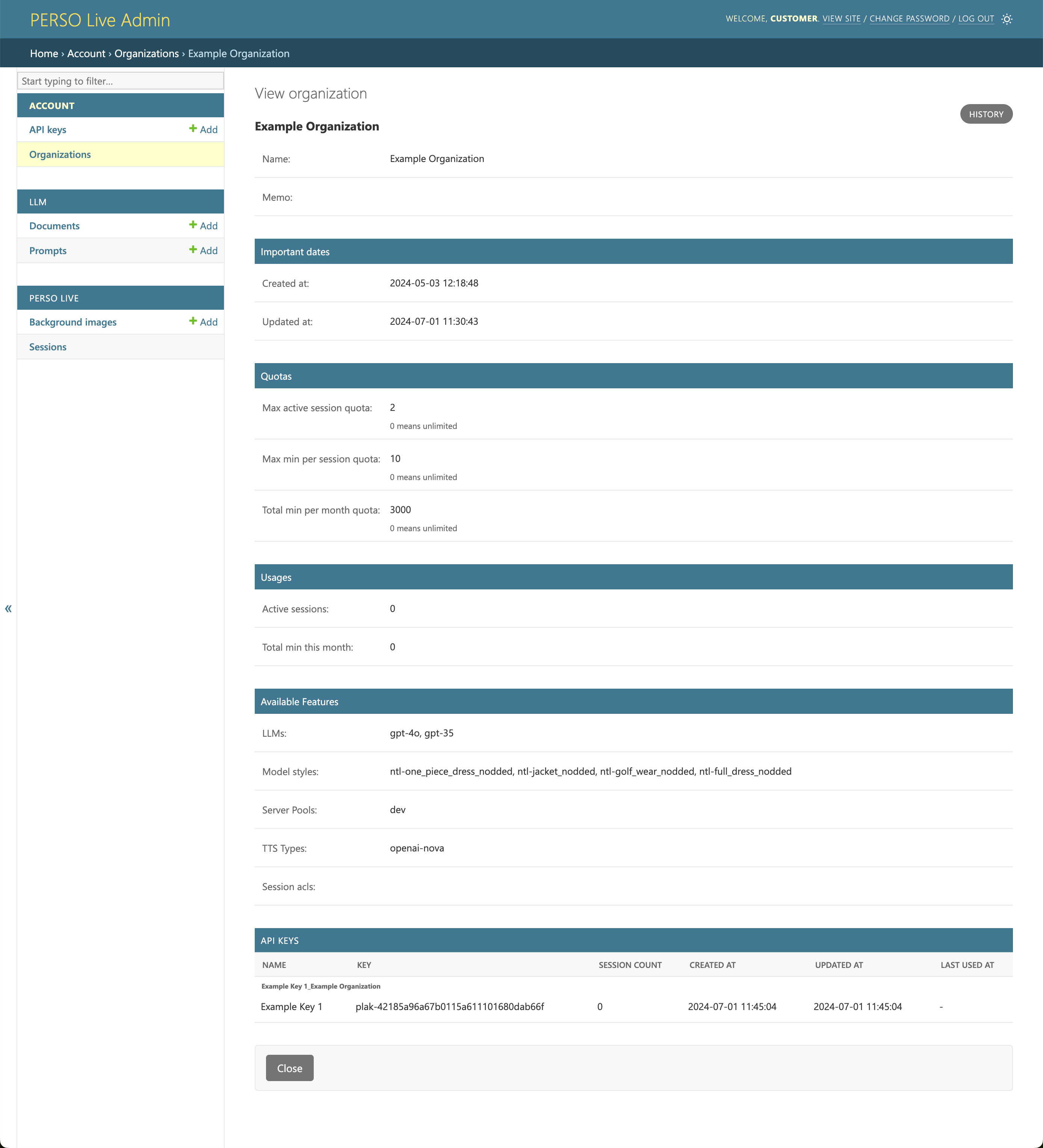
Viewing Organizations
Click your organization's name to view the details.
If you wish to change the quota or available features, please contact the administrator.
API Keys
The API Key allows unlimited access to your organization's resources. It should be kept secret and should not be exposed.
Exposure or misuse of this key can lead to unauthorized access, data breaches, potential security vulnerabilities, and excessive usage resulting in increased billing. If the key is compromised, it must be rotated immediately.
Always store the key in secure environments and avoid sharing it through insecure channels like email or plain text files. Never expose the API Key to the client; instead, use proxying or other secure methods to handle API requests.
We are not responsible for any excessive usage or billing resulting from the misuse or exposure of the API Key.
Listing API Keys
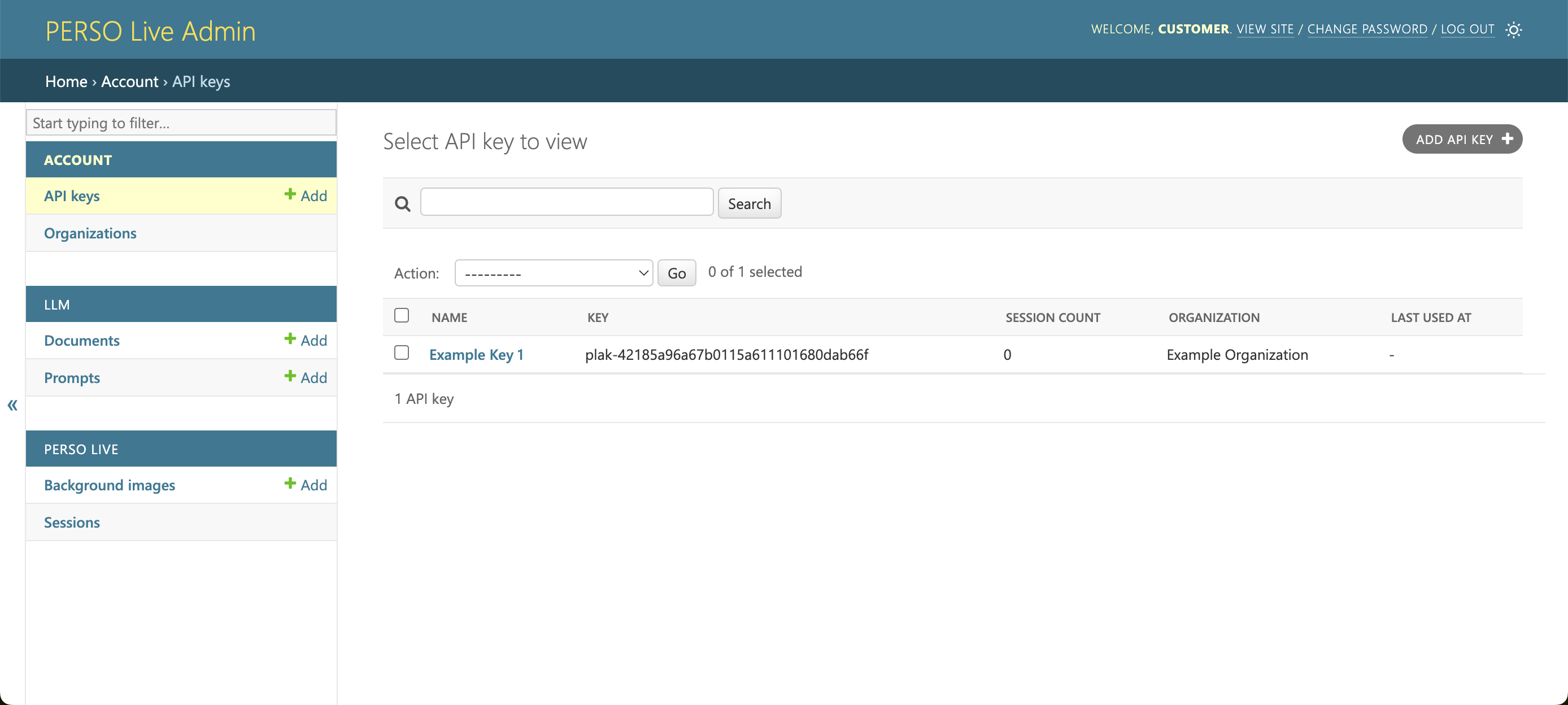
You can view active API Keys in the API Keys page.
Viewing API Keys
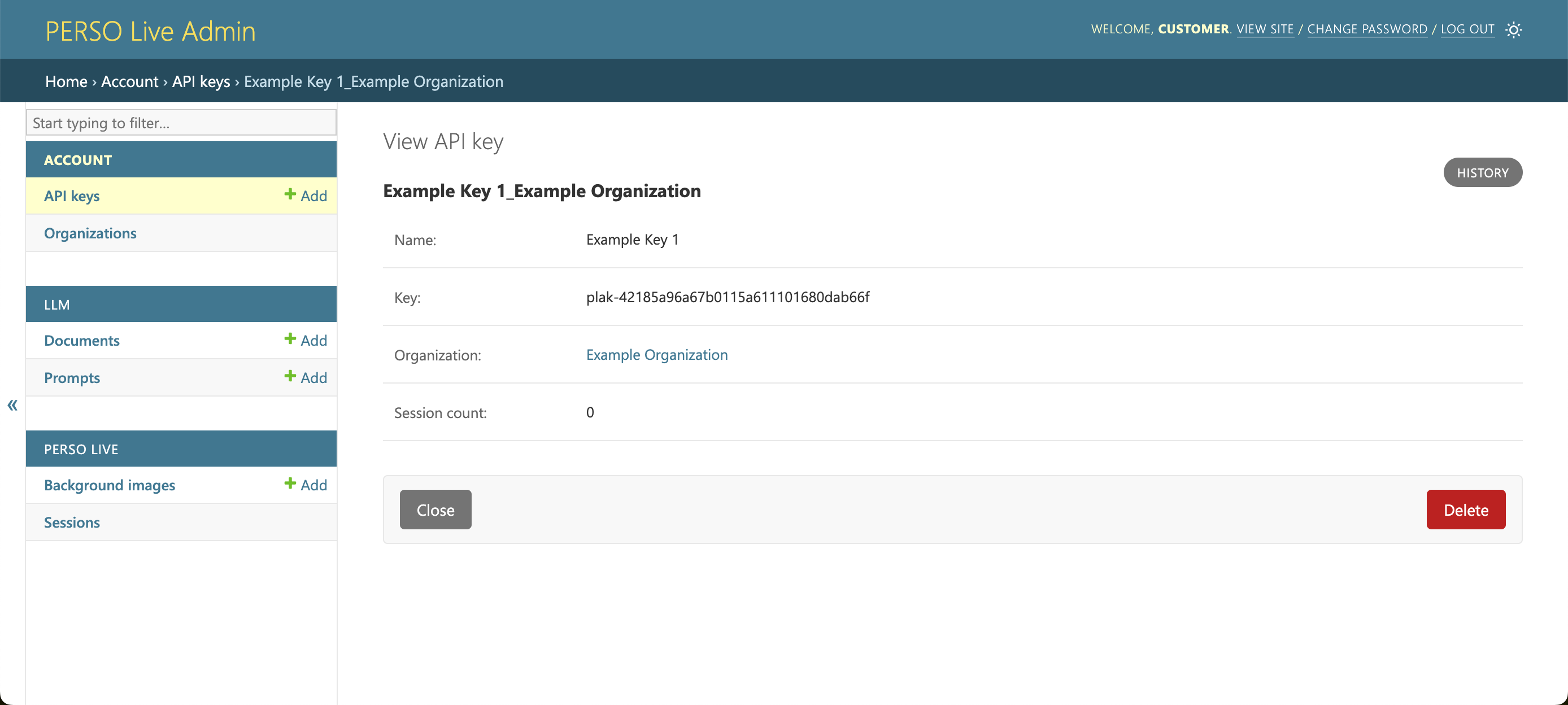
Click it's name to view or delete the API Key.
Creating API Keys
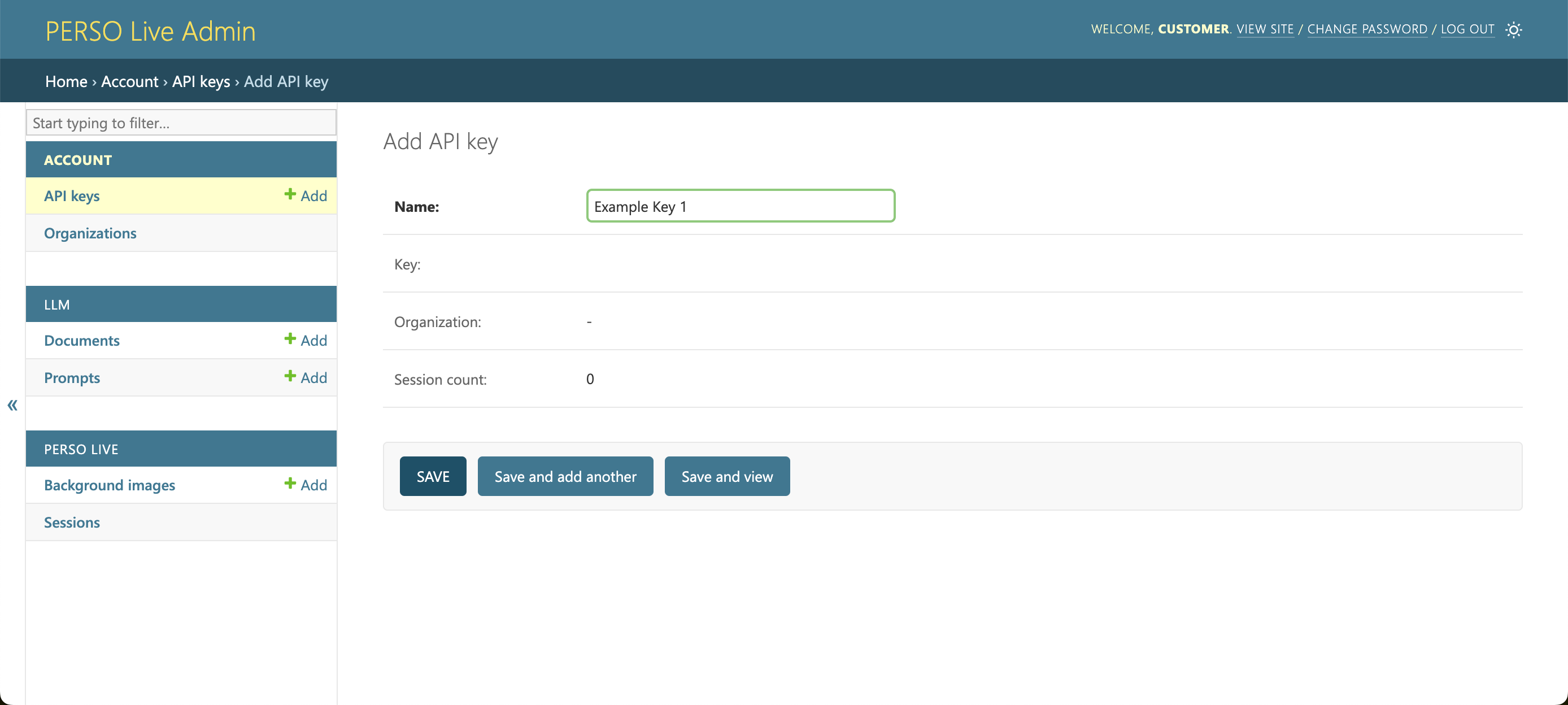
To create an API Key, click ADD API KEY Button from the list page.
LLM
Documents
PERSO Live enhances chatbot responses with Retrieval-Augmented Generation (RAG), enriching interactions by retrieving relevant documents.
This process involves storing and retrieving documents based on their relevance to the user’s query.
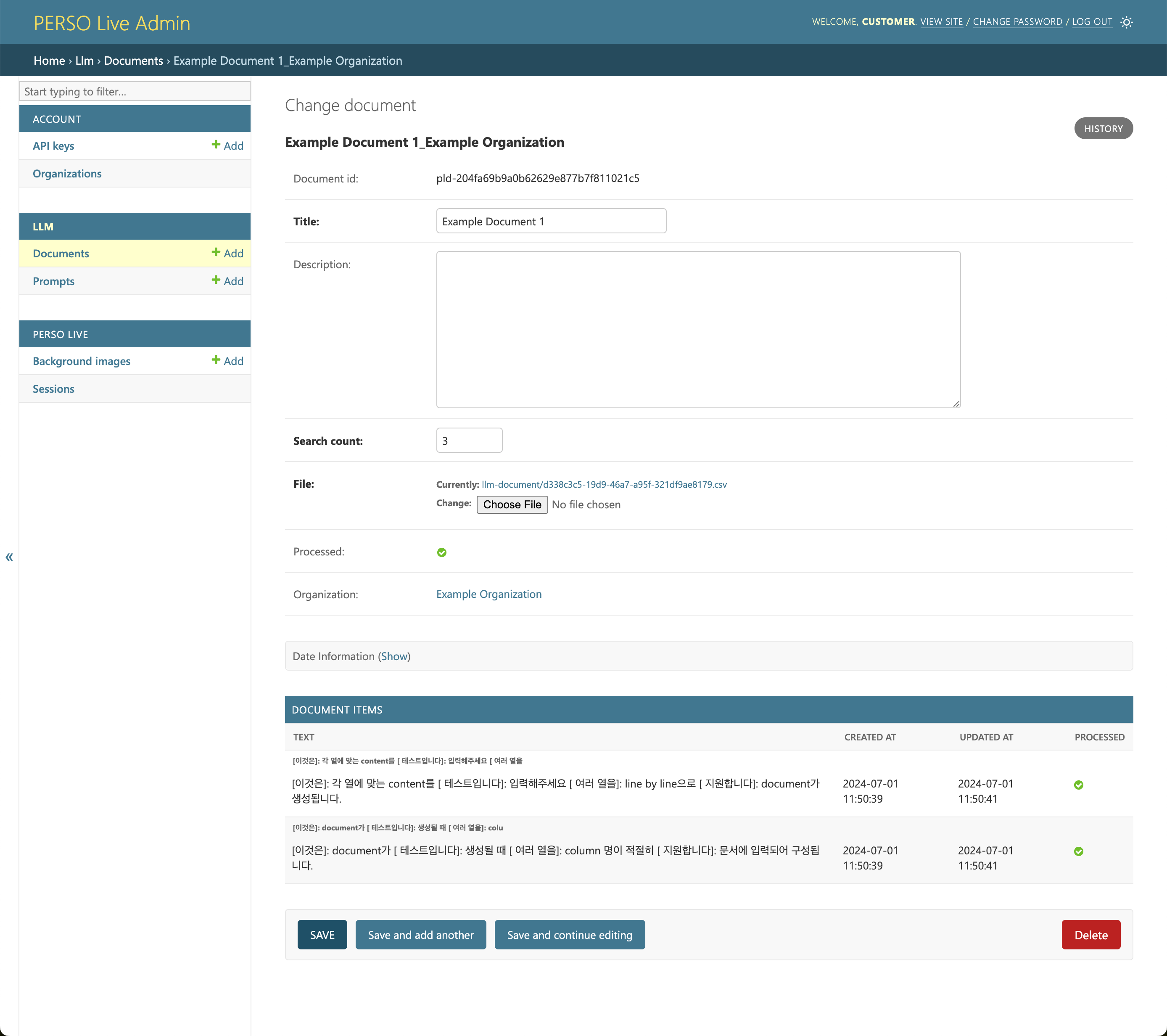
Listing Documents
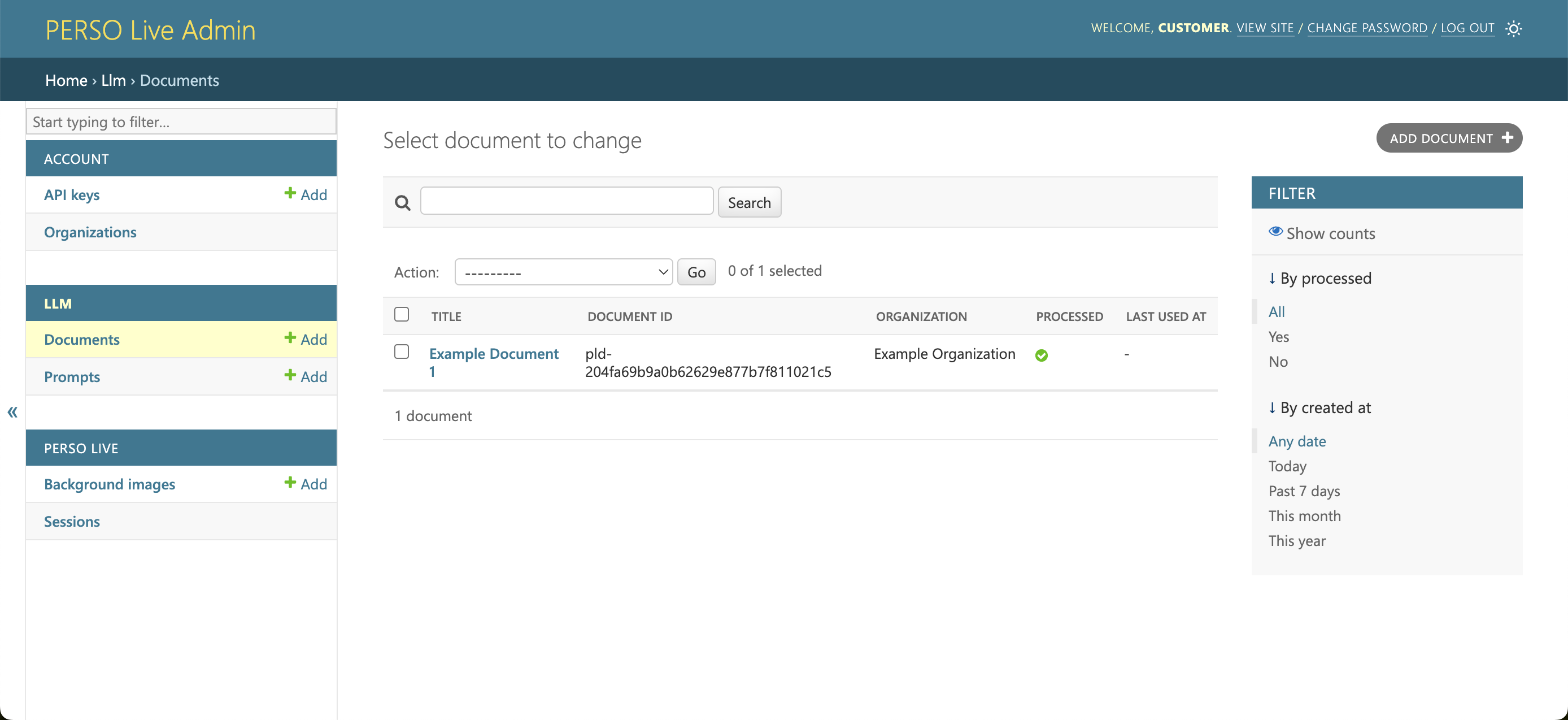
You can access and manage your organization’s documents on the Documents list page.
Viewing Documents
Click it's name to view or delete the document.
Creating Documents
To create a document, click ADD DOCUMENT Button from the list page.
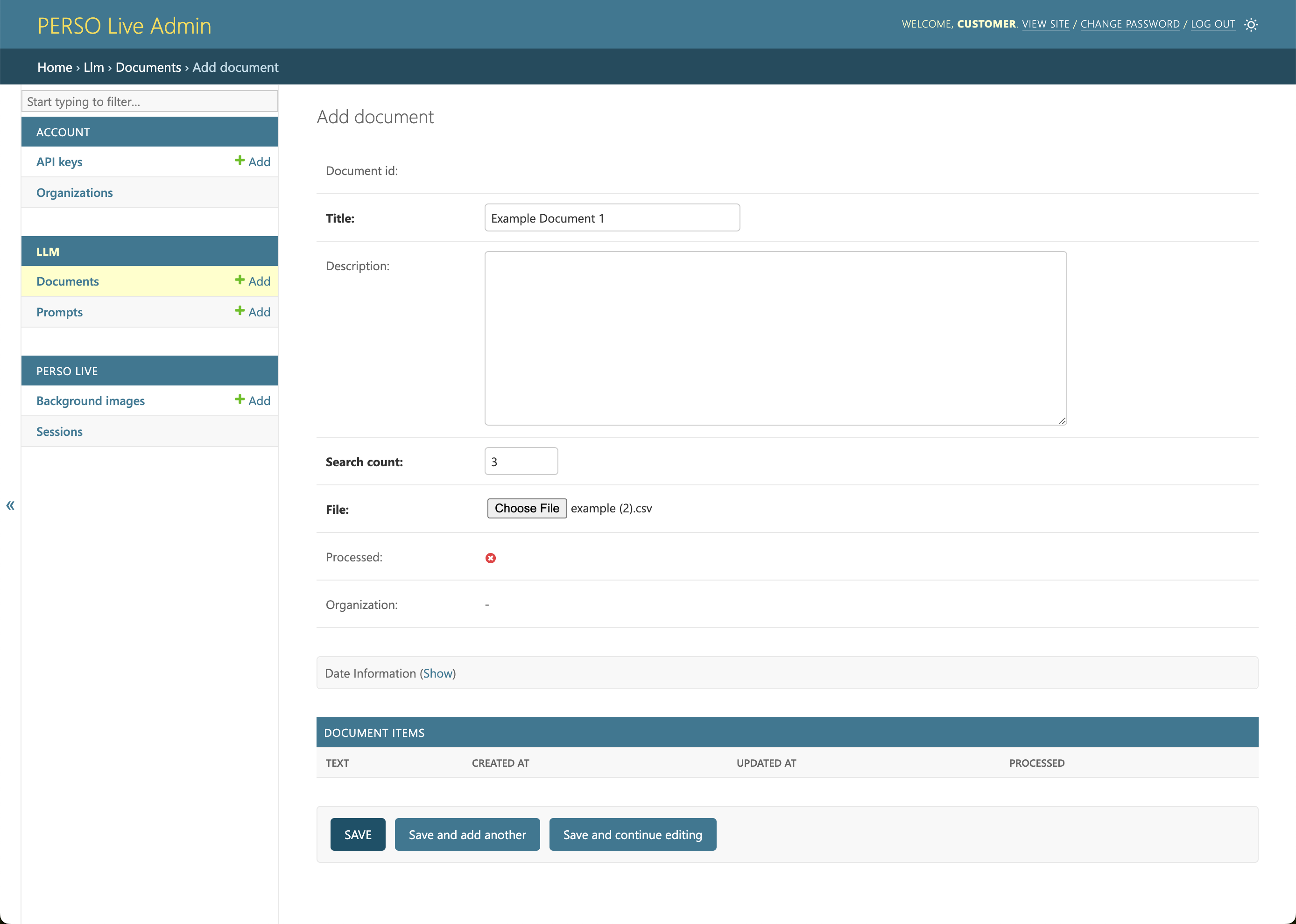
PERSO Live will split your document into Document Items and generate vector embeddings. The documents will not be available for use until the generation is complete. This might take several minutes depending on the size of the document.
When the generation is complete, the processed attribute of the document will be set to True.
File
File Format Requirements
- Accepted Formats: CSV, XLS, XLSX
- Document Structure: The first row should be used as the header.
Example
Input File
| name | price | description |
|---|---|---|
| apple | 3 | honey crisp |
| orange | 2 | navel |
| melon | 10 | honeydew |
Resulting Document Items
[name]: apple [price]: 3 [description]: honey crisp[name]: orange [price]: 2 [description]: navel[name]: melon [price]: 10 [description]: honeydew
Search Count
This setting determines how many relevant document items will be included in the chatbot's prompt. The default is 3.
Prompts
PERSO Live uses LLMs to generate responses for user queries. You can customize what prompt the LLM will receive.
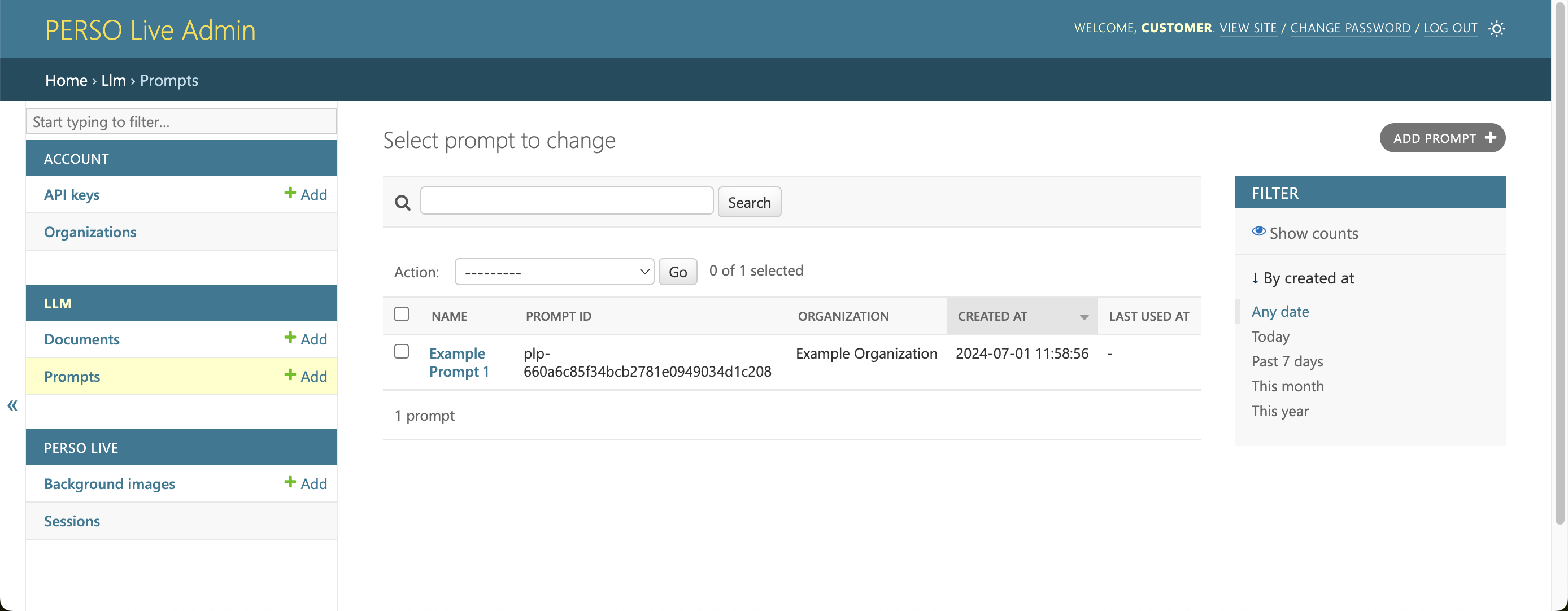
Listing Prompts
You can view your organization's prompts in the Prompts list page.
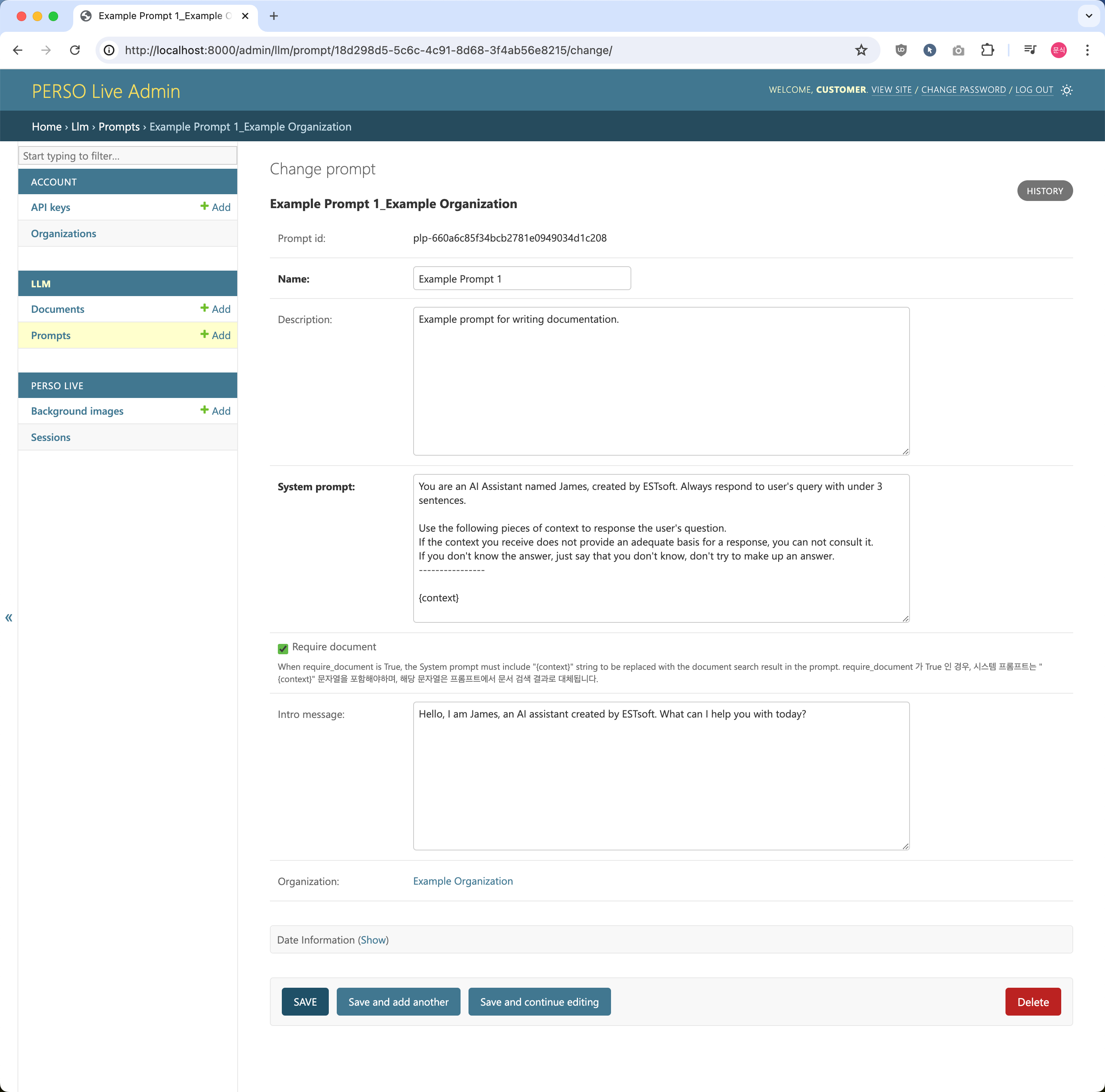
Viewing Prompts
Click it's name to edit or delete the prompt.
Creating Prompts
To create a prompt, click ADD PROMPT Button from the list page.
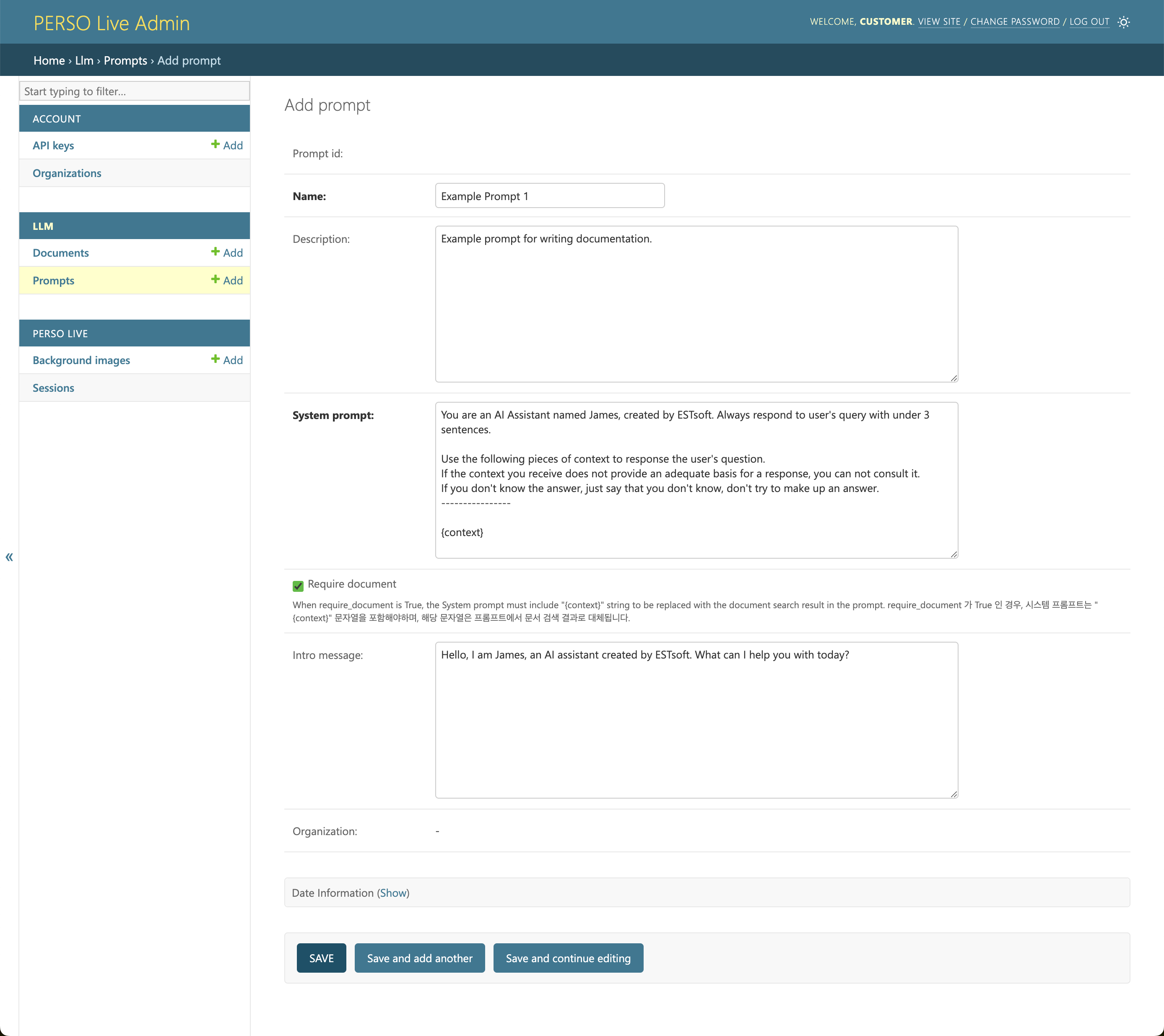
System Prompt
The system prompt that will be used in the LLM.
In the system prompt, you should set the desired tone and style and define the scope of responses and use conditional instructions to guide the LLM’s behavior under certain conditions.
Require Document
This option enables the Retrieval-Augmented Generation (RAG) feature for the prompt.
When checked, the system prompt must include the “{context}” placeholder, which will be replaced with the document search result.
Example
-
System Prompt
You should answer questions regarding fruits using the following data; {context}
-
RAG result
[name]: apple [price]: 3 [description]: honey crisp
-
Resulting prompt
You should answer questions regarding fruits using the following data; [name]: apple [price]: 3 [description]: honey crisp
Intro Message (Optional)
If set, the AI Human will automatically deliver this message upon connection, even without user interaction.
PERSO Live
Background Images
You can change the background of an AI Human video session by uploading the image and setting the image upon session creation.
Listing Background Images
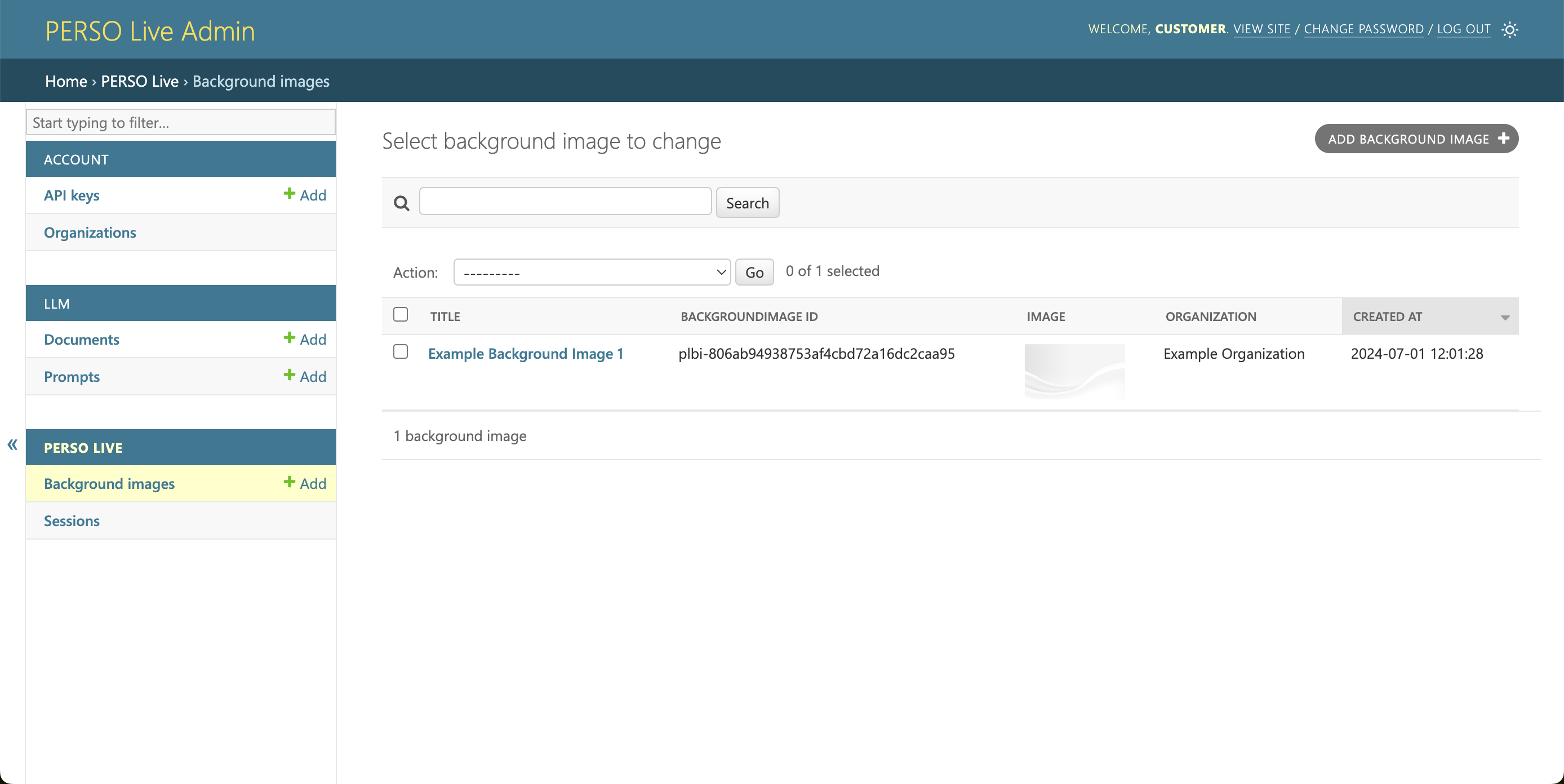
You can view your organization's uploaded background images in the Background Images list page.
Viewing Background Images
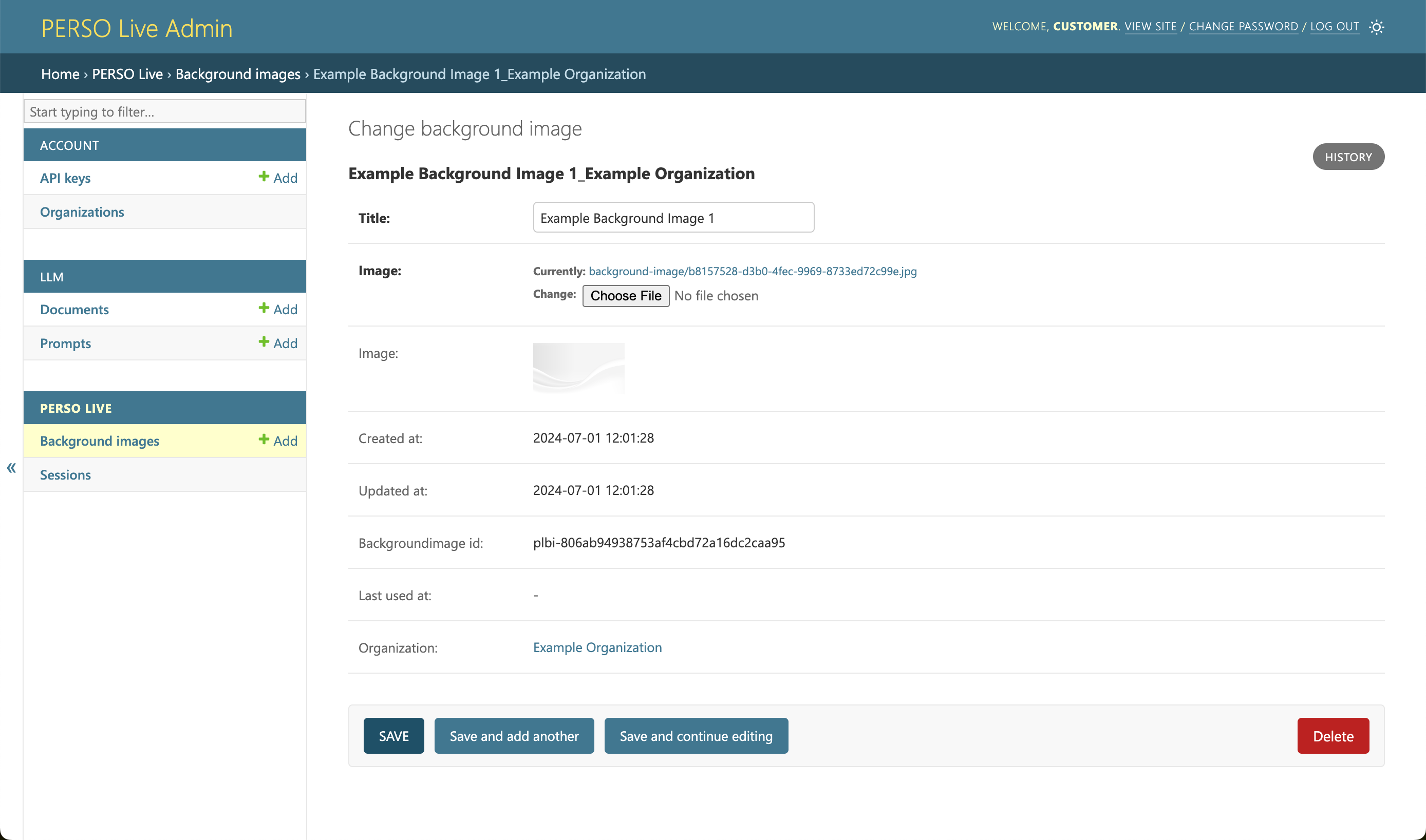
Click the name of the image to edit or delete the background image.
Creating Background Images
To create a new background image, click ADD BACKGROUND IMAGE Button from the list page.
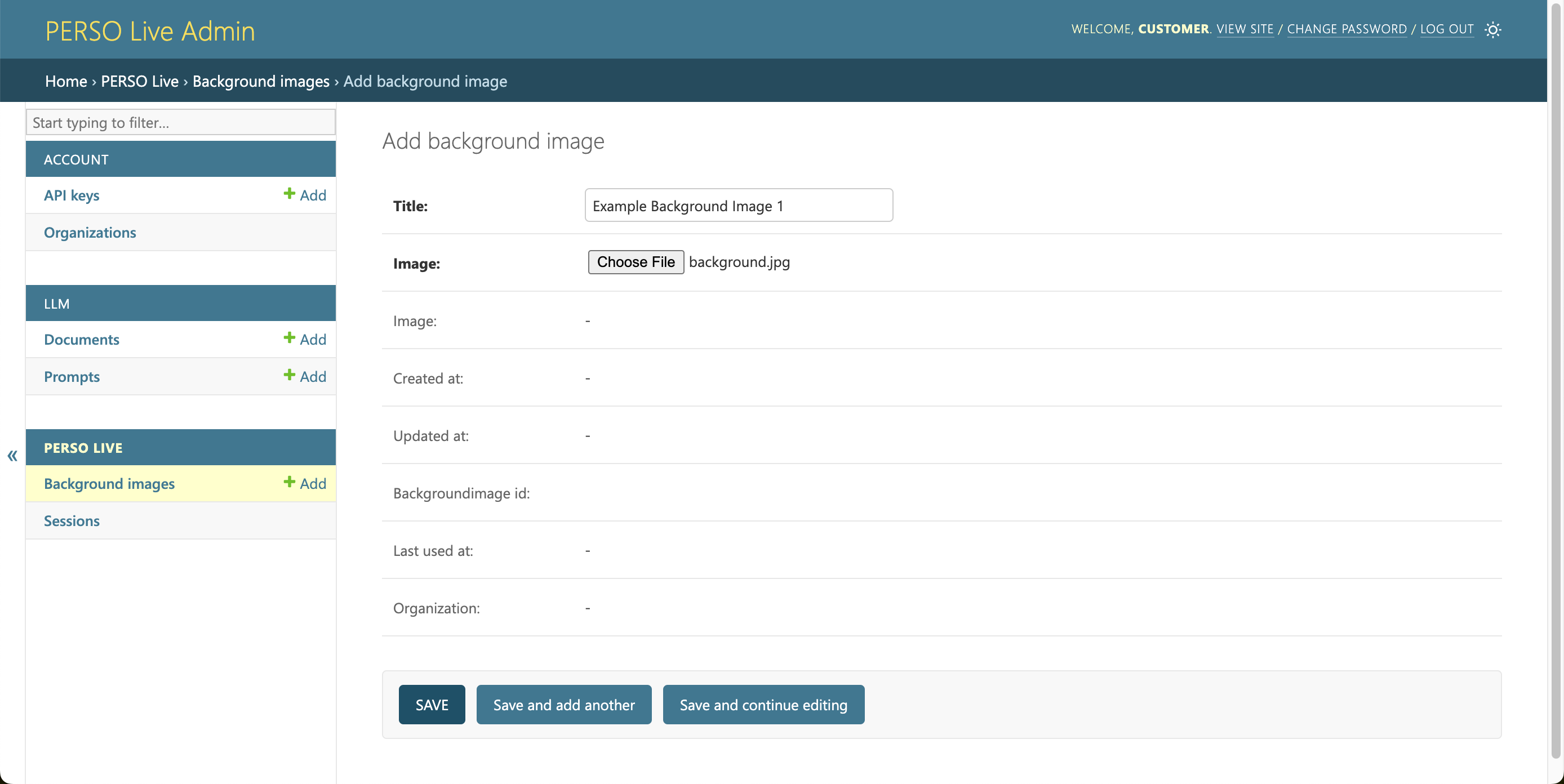
Image
An image with 16:9 or 9:16 aspect ratio and over FHD (1920 x 1080 or 1080 x 1920) resolution is recommended.
The image will be scaled to fill the canvas.
Sessions
Listing Sessions
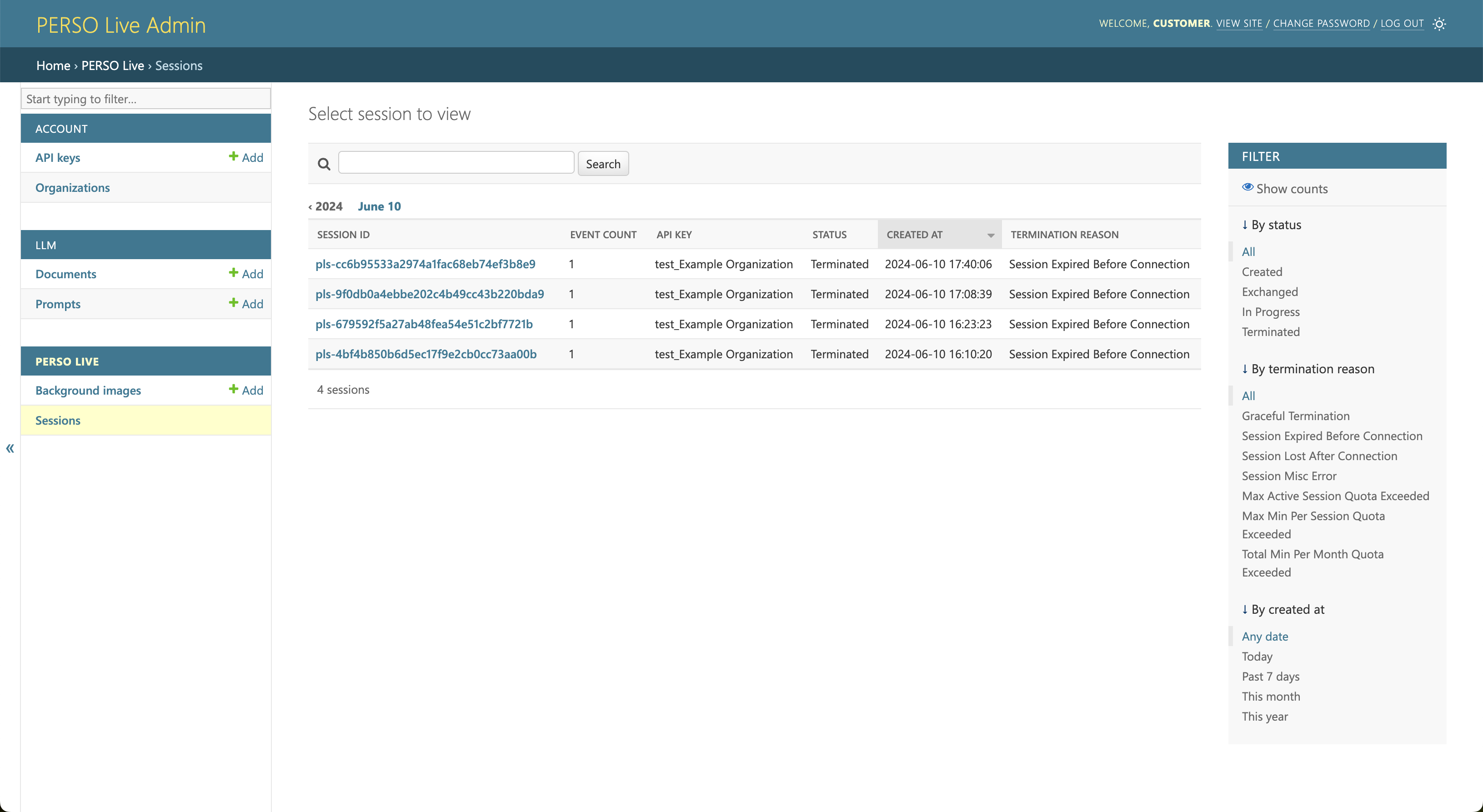
You can view your organization's sessions in the Sessions list page.
You can search the sessions by session id in the search column.
Viewing Sessions
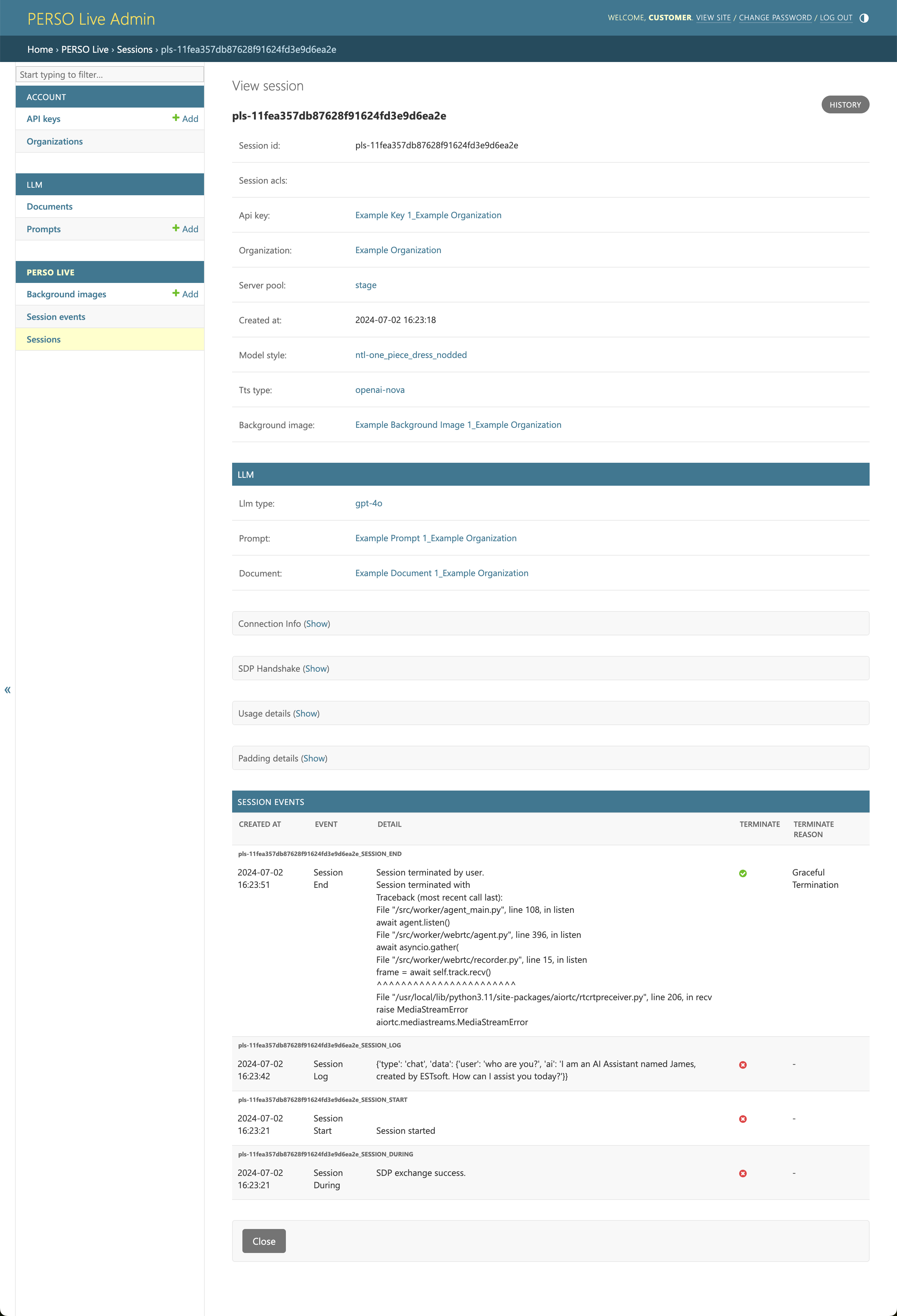
Click the session id to view the details and events.
PERSO Live SDK Documentation
Introduction
PERSO Live SDK is SDK for integrating and using PERSO Live.
Currently, only the JavaScript SDK is available. Please refer to the sample projects to learn how to use the SDK.
JavaSript
Introduction
This is the JavaScript SDK for PERSO Live.
Please refer to the Sample for detailed information on how to use the SDK.
Related information
Sample
These are sample projects that applies the PERSO Live SDK(JavaScript).
Browser
This sample is a webpage created with the JS SDK and runs in the browser.
How to use
Run js/src/index.html from the sample project in a web browser like Chrome.
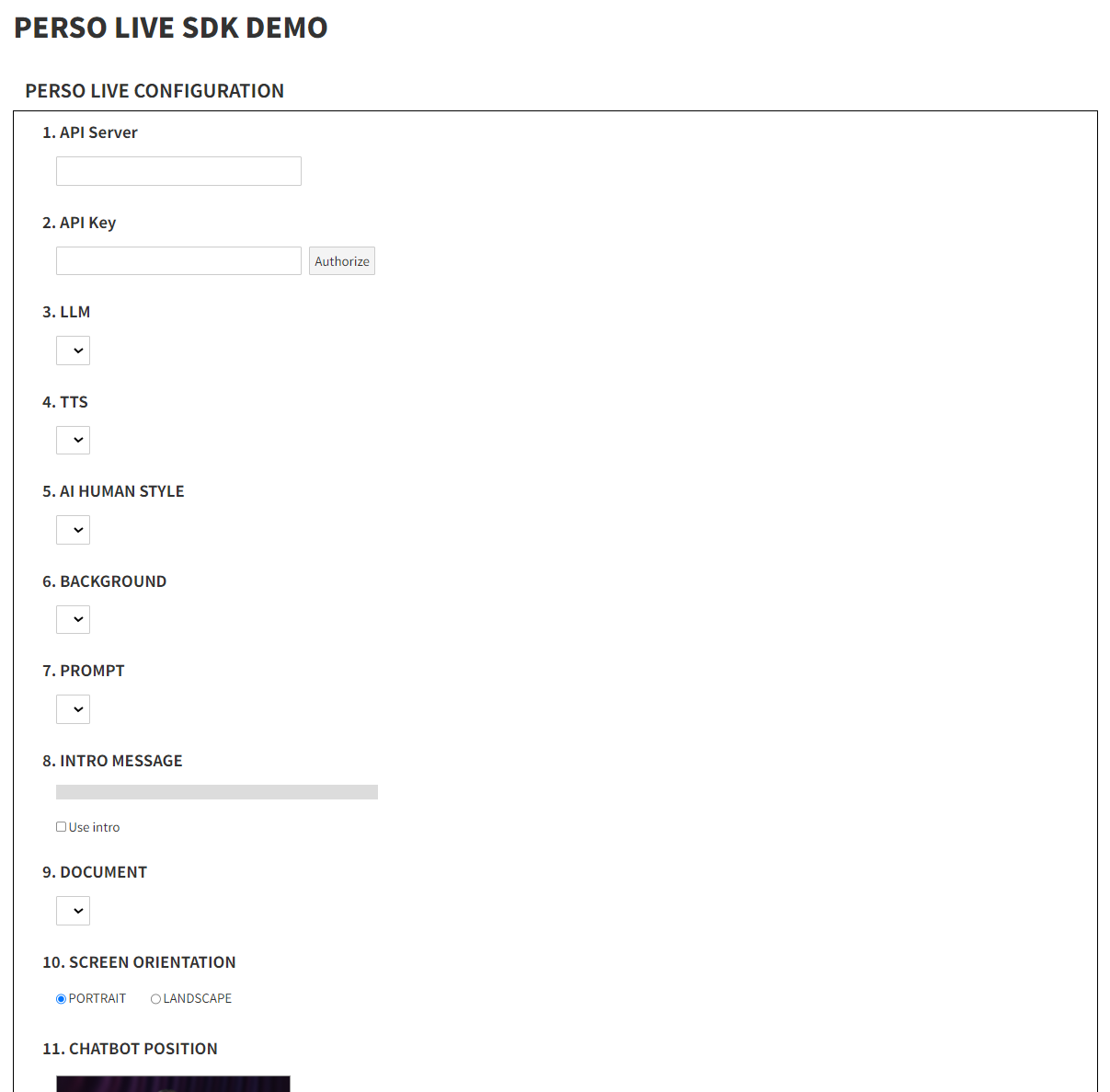
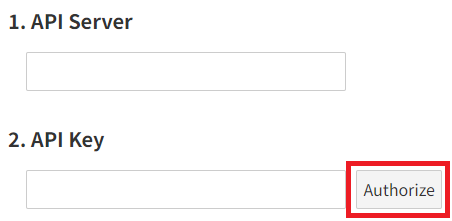
After entering the API Server and API Key, click on Authorize
If the API Server and API Key are valid, options from 3(LLM) to 9(DOCUMENT) will be loaded
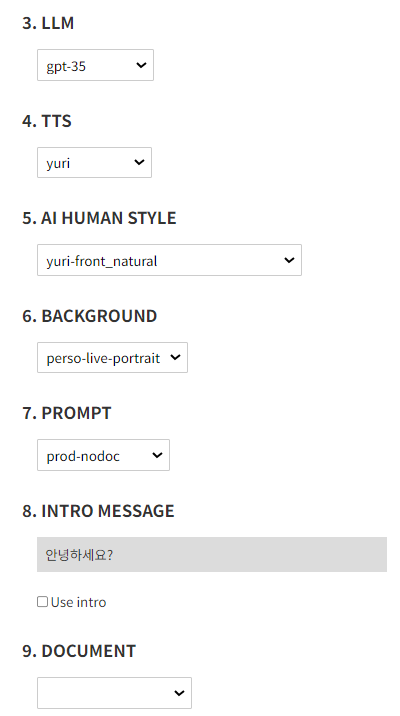
Check 8(Use Intro) if you want to use the Intro feature
('INTRO MESSAGE' set in the 'PROMPT' will be used)
There are cases where the prompt requires DOCUMENT. Please check and use it accordingly
Choose 10(SCREEN ORIENTATION) (PORTRAIT: 1080x1920, LANDSCAPE: 1920x1080)
11(CHATBOT POSITION) refers to the relative position and size of the chatbot(AI Human) in the video
CHATBOT LEFT: -1.0 to 1.0
CHATBOT TOP: 0.0 to 1.0
CHATBOT HEIGHT: 0.0 to 5.0
Click START to begin the session
After allowing microphone permissions, the Perso Live real-time conversation will begin shortly
Node.js
This sample is a Svelte project that includes a webpage with the JS SDK applied and a Node.js-based frontend server.
You can learn how to use the back office API from the frontend server to avoid exposing the API Key to the client
How to use
Install Node.js (the SDK was developed in the v20.11.0 environment)
Open the nodejs directory in an IDE like Visual Studio Code.
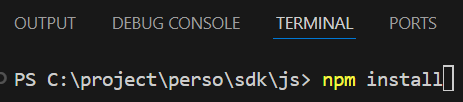
In the terminal, run npm install.
This will automatically download and install the necessary Node.js components for Svelte and server execution
Fill in 'persoLiveApiServerUrl' and 'persoLiveApiKey' in src/lib/constants.ts
Fill in the config values for llm, tts, etc., in src/hooks.server.ts
(hooks.server.ts runs once when the server starts.)
The commented-out getAllConfig code is an example of acquiring settings at runtime
Please use it only for checking server configuration values
Run npm run dev in the terminal
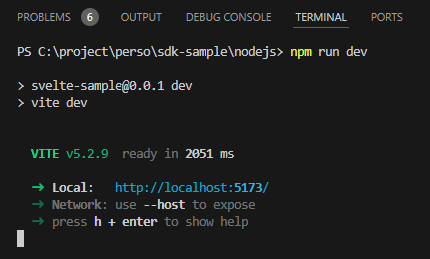
Access http://localhost:5173 in your web browser
If the server configuration is set up correctly, allow microphone permissions, and the Perso Live real-time conversation will start immediately.